X-Forwarded-For
Overview
The X-Forwarded setting is used to enable forwarding of client-related information through HTTP headers when requests pass through a proxy or load balancer.
Configuration Details
- X-Forwarded Option: This setting controls whether X-Forwarded headers are added to incoming requests before they are forwarded to backend servers.
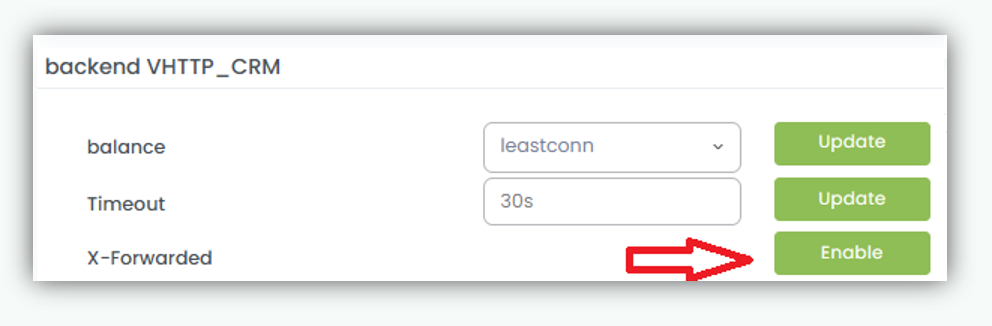
- Enable Button: Clicking the Enable button activates the X-Forwarded feature. Once enabled, the system begins appending relevant headers to each request.
Functionality
When enabled, the load balancer or proxy includes headers such as:
- X-Forwarded-For → Original client IP address
- X-Forwarded-Proto → Protocol used (HTTP/HTTPS)
- X-Forwarded-Port → Original request port
These headers allow backend applications to identify the true client details, even when traffic passes through intermediaries.
Use Cases
- Logging the real client IP instead of proxy IP
- Enabling accurate request tracking and auditing
- Supporting applications that depend on protocol or client origin
Recommendation
It is recommended to enable X-Forwarded headers in environments using proxies or load balancers to ensure accurate client information is preserved.
How to Enable X-Forwarded-For
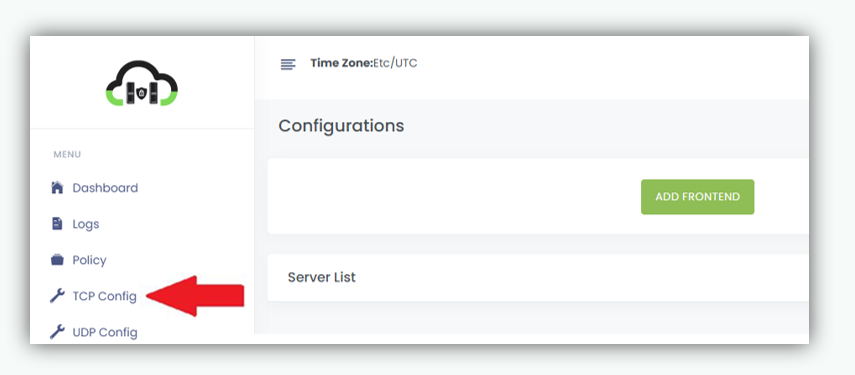
- Navigate to TCP Config.
Click on TCP Config from the left navigation menu.
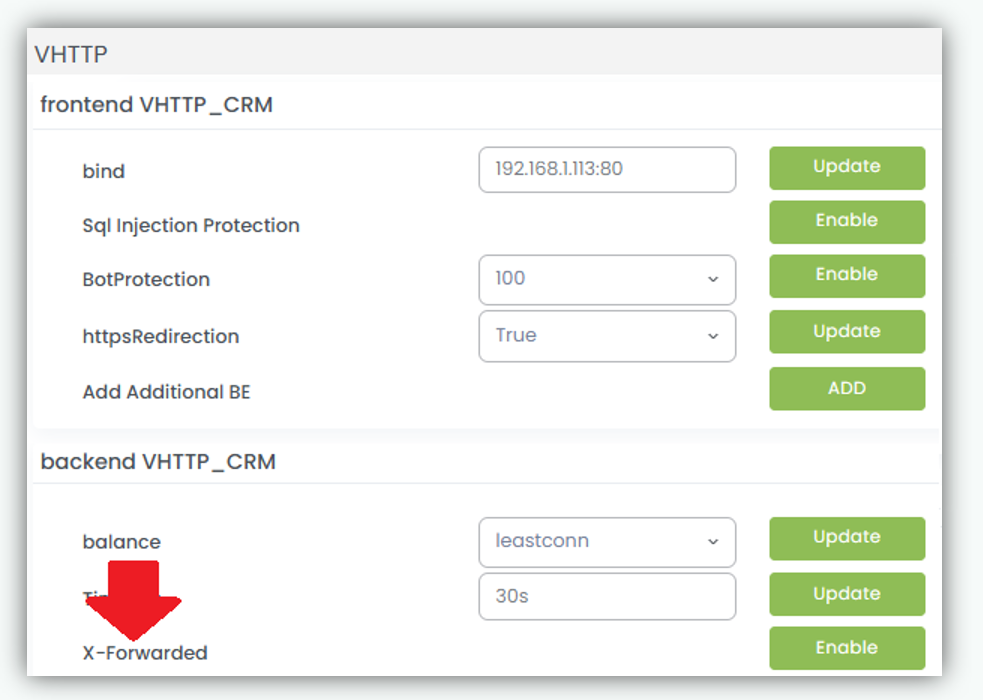
- Locate the required Frontend server from the list you want to enable X-Forwarded-For.
- In the frontend server configuration panel, locate the X-Forwarded-For option.
- Click on Enable button to enable the X-Forwarded-For.
- A confirmation popup message appears to confirm that the X-Forwarded-For is enabled.
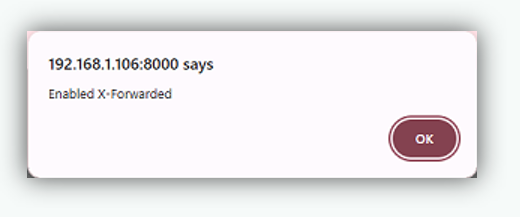
Once enabled, all incoming HTTP/HTTPS traffic will preserve the header white forwarding to the backend servers.